
Meta tracking
Your Meta Pixel Is Not Active? How to Find and Fix It
Find out why your Meta Pixel is inactive, test the live website, and fix missing events or mismatched settings without adding duplicate tracking.
Danni ·
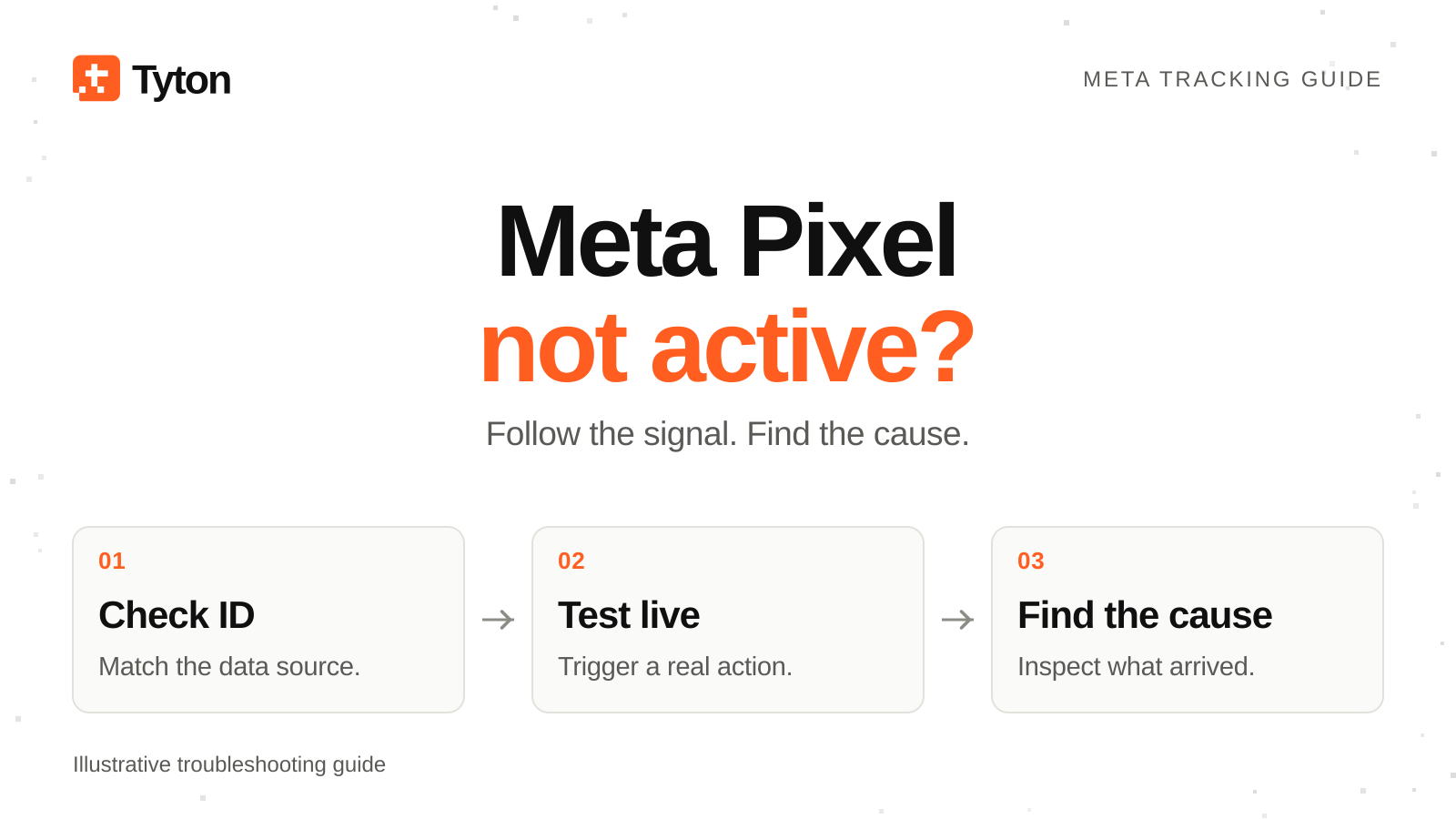
Setting up Meta tracking can turn into a whole project of its own. Then you open Ads Manager and get told that your Meta Pixel is not active.
Before you reinstall it, run a test on your live website. You need to find out whether all browser events are missing, one conversion isn't working, or your ad set is looking at the wrong data source. Adding another Pixel snippet can give you duplicate events without fixing the warning.
TL;DR
- Match the Pixel or dataset ID on your site with the one in Events Manager and your ad set.
- Test a page visit and the conversion you care about. Missing PageView? Start with the installation. PageView works but Purchase doesn't? Check the purchase trigger.
- If fresh events arrive and the warning remains, check your ad settings before changing more code.
1. Make sure you're checking the right Pixel
Open Events Manager and select the Pixel or dataset you expect your website to use. Compare its ID with the ID in your website integration, Google Tag Manager tag or installed code. Check the affected ad set too.
Use the number to match them. An old test Pixel can have almost the same name as your live one.
Save the warning and note where it appears, the event it mentions and the latest activity time. A warning about Purchase needs a different check from a source that hasn't received anything.
If there's no Pixel installed, follow our Meta Pixel setup guide.
2. Test the live website
In Events Manager, open the testing tools for that source, usually called Test Events. Keep this open while you test:
- Open the affected page on your live website in a fresh browser session.
- Accept the relevant tracking consent for your own test.
- Load a page, then complete the action you're trying to track. Use your site's test procedure for purchases or forms so you don't create unwanted charges or customer messages.
- Return to Meta and look for the events from that visit. Check the event name, time and destination ID against the page you tested.
You can also inspect browser tracking with Meta Ads Data Advisor, formerly Meta Pixel Helper. The Chrome extension still has its diagnostic features. Review any suggested changes before letting it apply them.
A helper detecting the tag, or GTM saying it fired, doesn't confirm that Meta received the event. Check both ends.
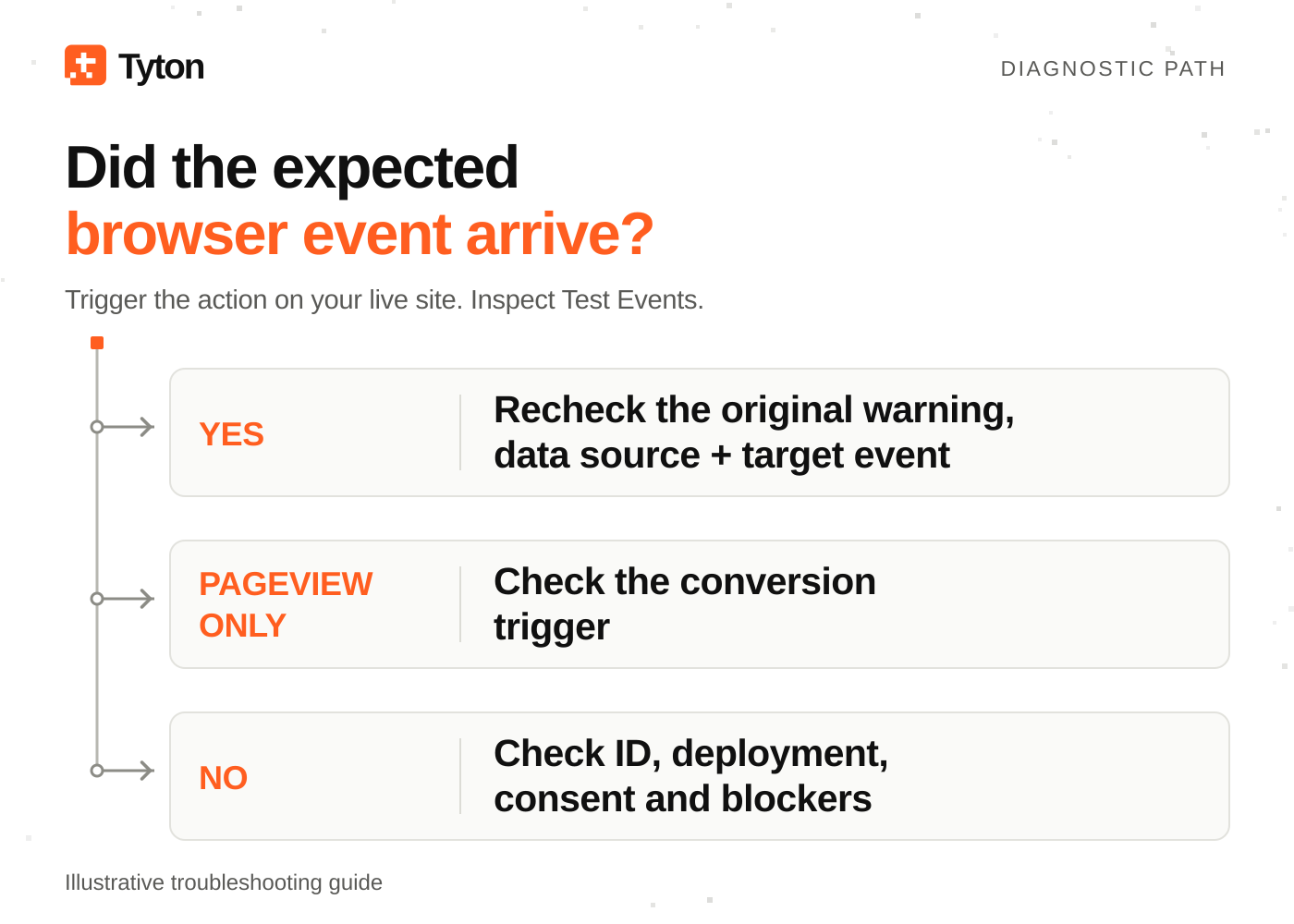
Illustrative troubleshooting flow: use your live-test result to choose the next check.
3. Meta Pixel not firing at all? Check these first
Is the installation live?
Check that your integration is enabled and that the right theme, site build or GTM container is published. Test the page where the problem happens. Your homepage can work while a separate landing page or checkout has no tracking.
GTM Preview can run an unpublished draft. If the Pixel works there, review and publish the intended changes, then test again outside Preview. Google's Preview documentation explains how this works.
Is consent holding it back?
Compare a fresh visit before and after accepting the relevant consent. A Pixel that starts only after consent may be behaving correctly.
If it stays silent after you accept, check how your consent banner communicates with the Meta tag: the consent category, the tag's requirements and what triggers it after consent changes. Google consent mode doesn't automatically configure every Meta tag. Check your integration's built-in and additional consent checks.
Keep consent controls in place, and test that declining consent works as intended too.
Is your browser blocking the request?
Repeat your consented test in a clean browser profile without ad-blocking extensions. Browser ad blockers can prevent Pixel data sharing, as Shopify explains.
If that fixes your test, you've narrowed the problem to the browser. If it doesn't, ask your developer to check failed network requests, JavaScript errors and Content Security Policy violations. Fix the specific error without switching off site security protections.
4. PageView works, but Lead or Purchase is missing
Now focus on the conversion trigger. Did you redesign the form? Change the thank-you URL? Move checkout to another domain? Also check that your implementation sends the event name you're looking for.
The event should fire when the action succeeds. A form-button click can happen even when validation fails. Clicking checkout doesn't mean someone completed a purchase. Test failed submissions and repeated clicks as well as a successful conversion.
If your site changes pages without a full reload, a page-load trigger can miss later actions. Your developer may need an application event or route-change trigger. GTM's History Change trigger can help with virtual pageviews, but a URL change alone doesn't prove a conversion happened.
5. Active in Events Manager, inactive in Ads Manager
If Events Manager receives fresh events, check what the ad set is expecting:
- Is it using the same Pixel or dataset ID, and is that source available to the right ad account?
- Is it looking for Purchase while you've only tested PageView?
- Did your test arrive from the browser, the server or both?
- Are you looking at an old date range or activity timestamp?
- If you're using a custom conversion, did your test match its event and conditions?
Receiving a test event doesn't guarantee an attributed conversion in Ads Manager. Check event delivery separately from ad reporting.
Once those settings match, recheck the warning and diagnostics. “Wait 24 hours” won't fix a missing event. Follow any timing guidance attached to your warning; if it persists despite confirmed delivery, give support the exact message, source ID and latest successful test time.
6. Check for duplicate tracking
Before adding more code, check where the Pixel is already installed: your theme, platform integration, plugins, GTM or an event setup tool. If one action sends duplicate browser events, work out which installations sent them before removing the extra one.
Shopify specifically warns that keeping manual Pixel code alongside its Meta integration can cause duplicate or incorrect reporting.
If you also use Conversions API, test that connection separately. It sends events from a server, as described in Meta's Business SDK documentation. Server events can arrive while the browser Pixel is broken, and a browser helper won't give you a full picture of server delivery.
For the same action sent through both connections, check deduplication, including the matching event name and shared event ID. Consent choices still apply. Our Conversions API vs. Meta Pixel guide explains how to use both together.
Run the test again after your fix
Publish the change and repeat the full journey on the live site. Confirm that the expected event reaches the right ID with a fresh timestamp and the intended event count.
Keep a short note of what you changed and what passed. It'll help if tracking breaks again after a theme, checkout or consent-banner update.
Frequently asked questions
What does “Meta Pixel inactive” mean?
Check which source or event the warning refers to and when it last received activity. The label alone won't tell you what's broken. A fresh test gives you somewhere to start.
Why is my Facebook Pixel not active after installation?
Check the ID, published installation, consent settings and event trigger. A new Pixel needs activity before there's anything to display, so test your live site before reinstalling it.
How long does it take for an inactive Pixel to become active?
First confirm that Meta receives a fresh event. Then follow the timing guidance on your specific warning. Waiting won't help if the event never arrives.
Why does my Pixel work in GTM Preview but not live?
Preview can use a draft. Check that the right container is installed, publish the intended version and retest outside Preview with the relevant consent.
Will Conversions API fix an inactive Meta Pixel?
It adds a server connection. You'll still need to fix missing browser code, a broken trigger or the wrong selected source, and check deduplication if you use both.
Still stuck?
Try Tyton's free tracking audit. Keep your test results handy so you can compare the findings with the warning you're seeing.